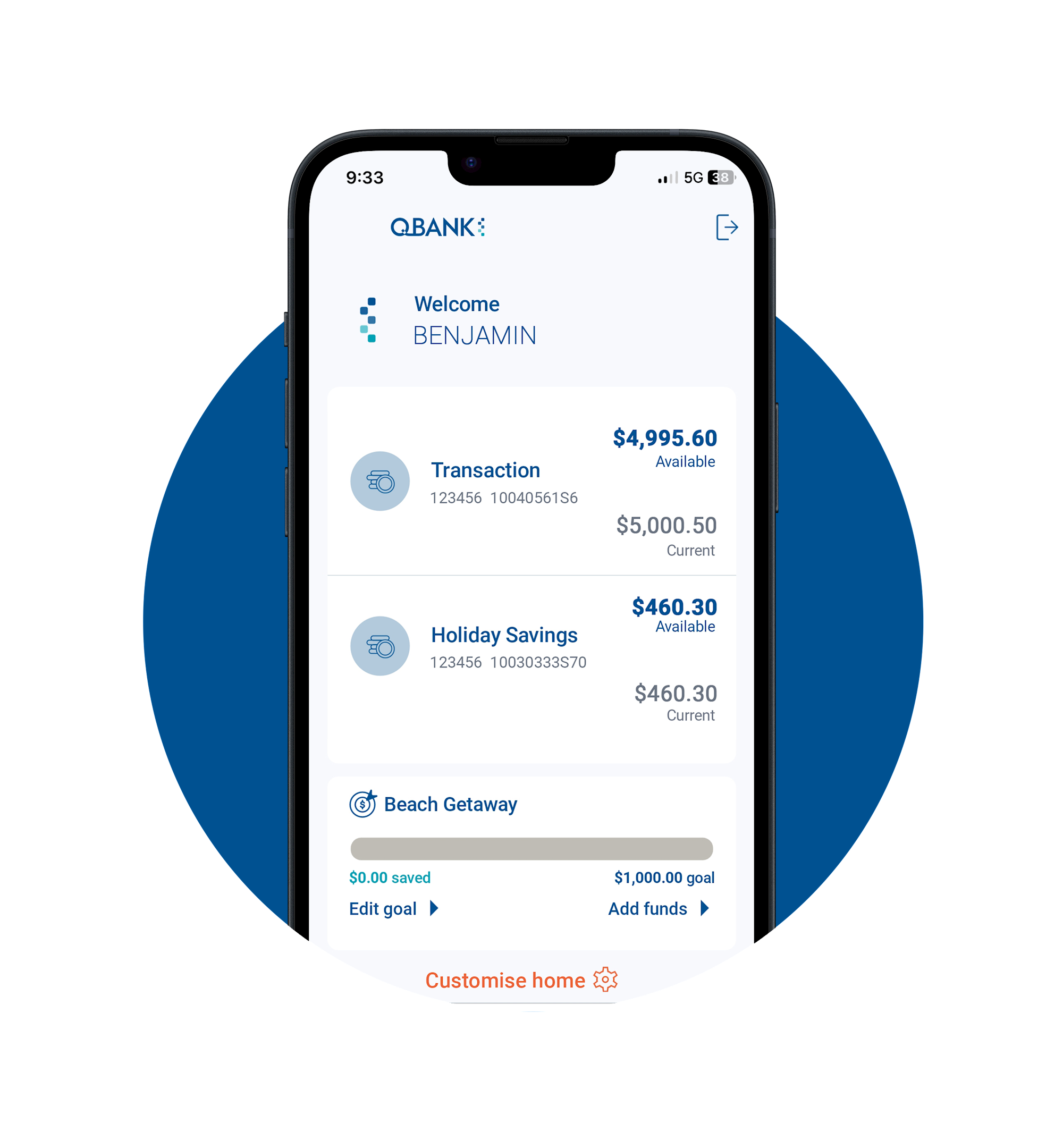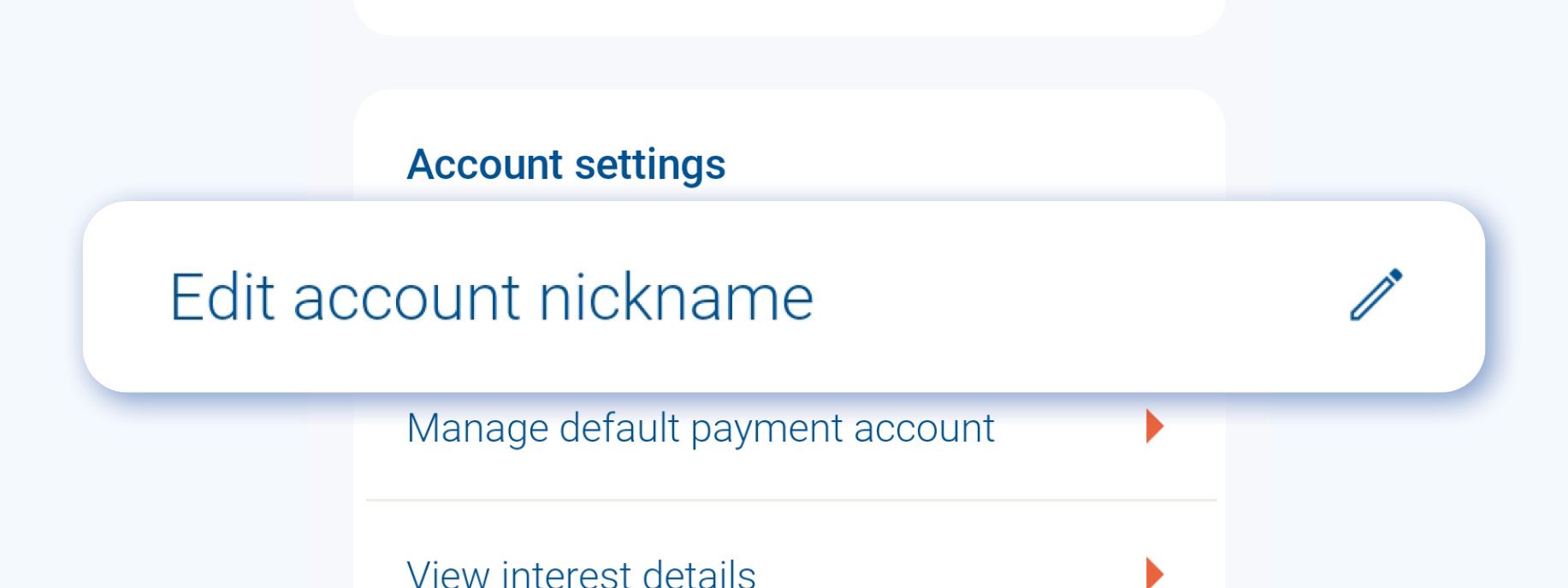
Nickname your accounts to keep things clear and personal. (See FAQs below)
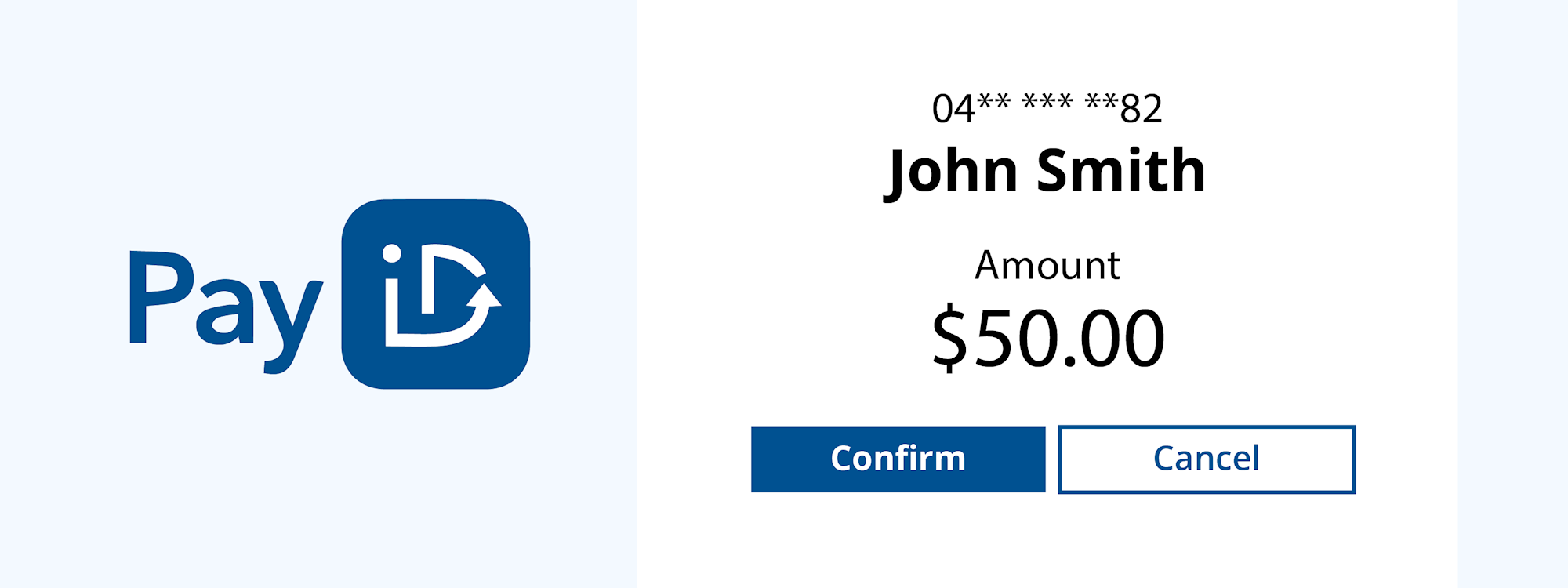
Set up and manage your PayID by linking your account to a mobile number or email address.
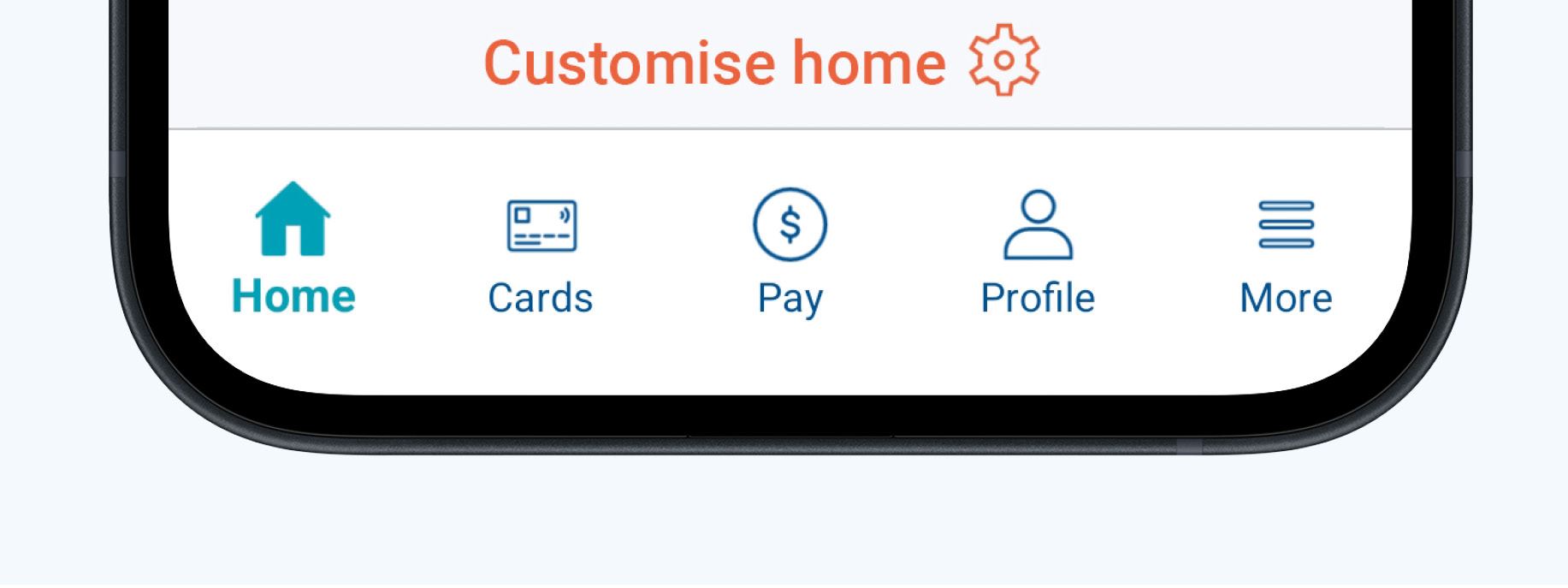
A tab-based layout puts key features right at your fingertips.
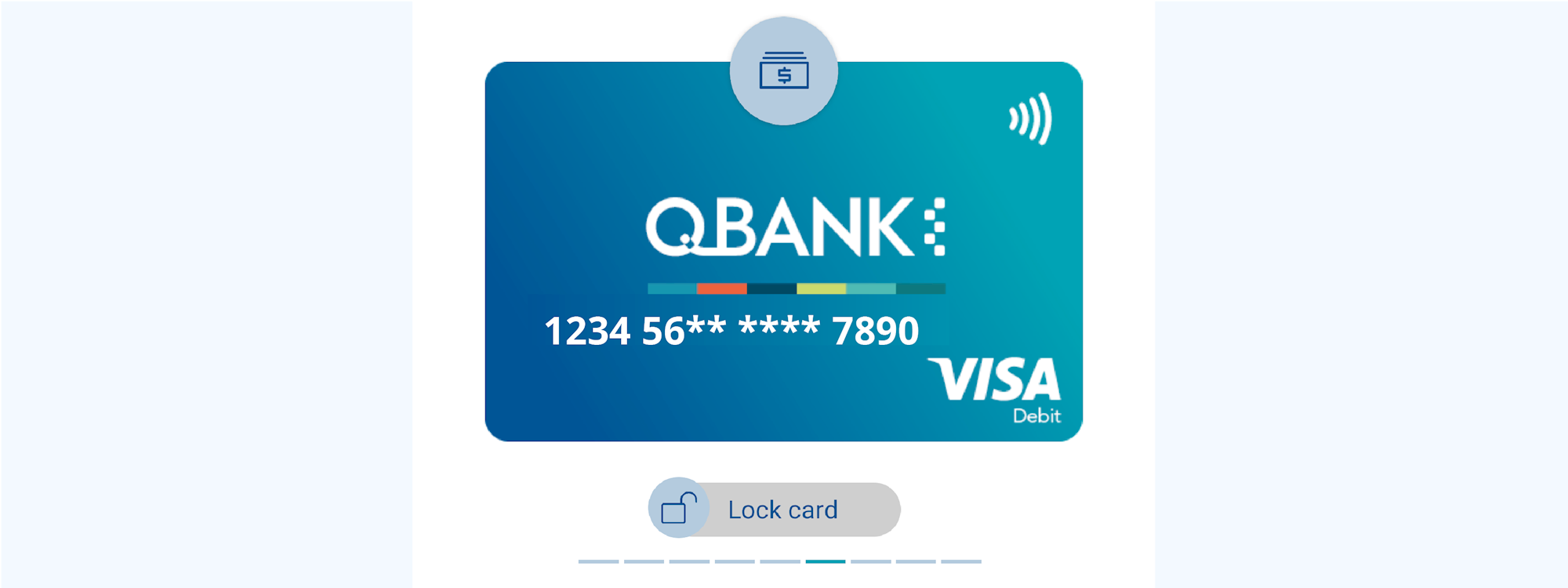
Whether your card is lost or stolen, you can lock and unlock your card.
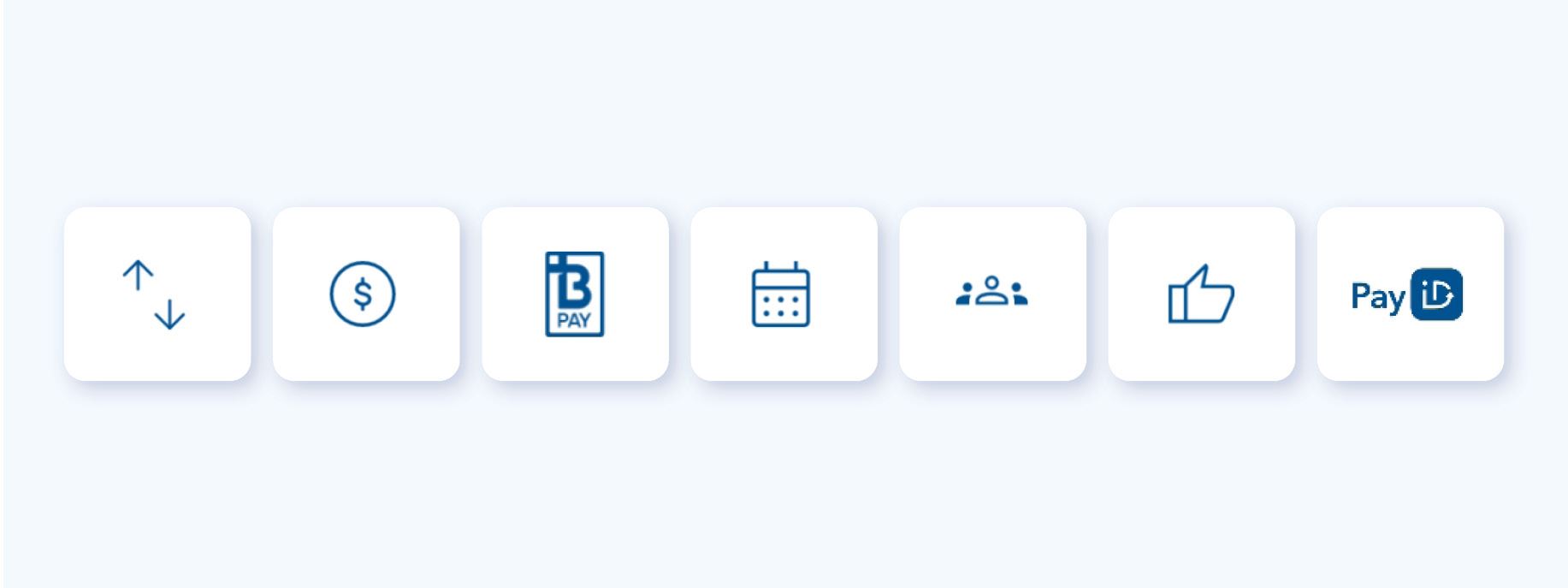
Receive and send money with OSKO® 24/7. Yes, even on weekends.
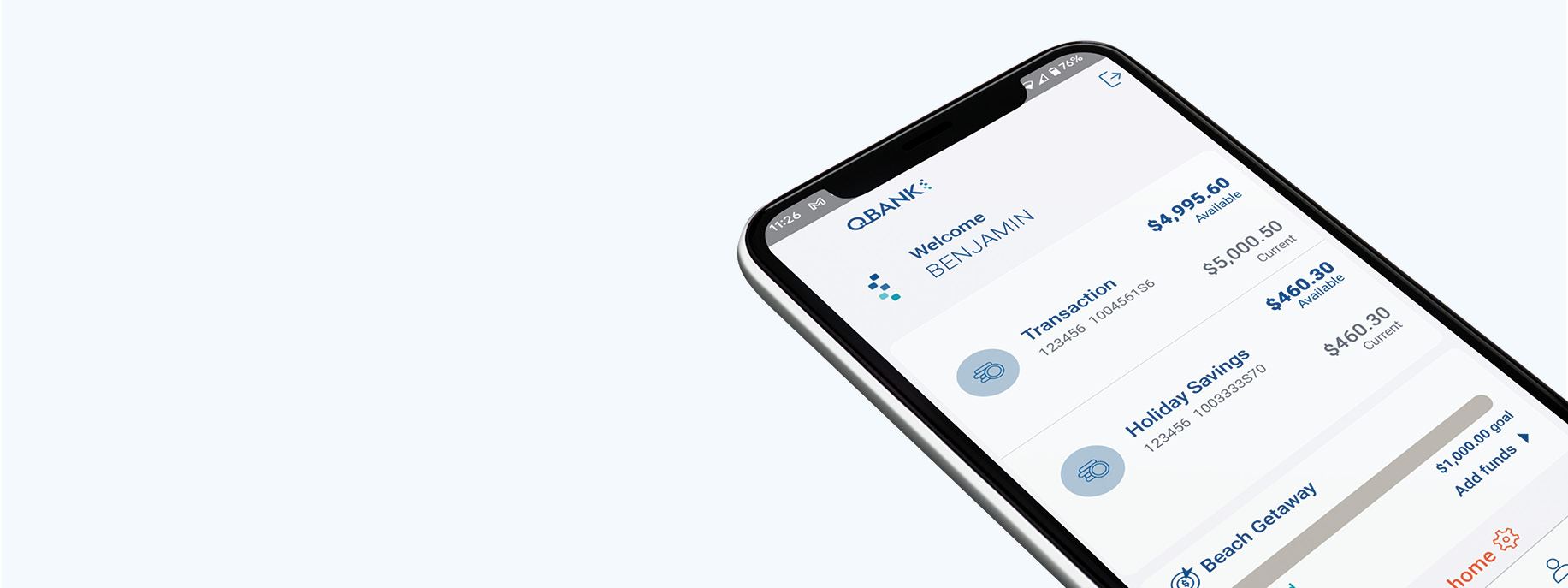
Check your account balance conveniently without having to log in by using Quick Balance.
You can download or update your QBANK App via the app store links below.
After installing or updating your mobile banking app to the latest version, you may need to register your account. To improve security and protection of your personal information, it is important to update your mobile banking app regularly as it becomes available.
1. Open the app and select ‘Log in’.
2. Select ‘Let’s get started'.
3. Enter your Member Number and Internet Banking Access Code.
4. Select a security option (PIN or Pattern).
5. Enter PIN or Pattern you will use as your mobile app login.
6. Read and Accept ‘Terms Of Use’.
7. Accept or decline Biometrics.
8. Virtual App tour will appear on your first registration.
9. You are now ready to use the mobile app.
*Our iOS app requires iOS 13 or above on your device to be installed.
1. Open the app and select ‘Log in’.
2. Select ‘Let’s get started’.
3. Enter your Member Number and Internet Banking Access Code.
4. Select a security option (PIN or Pattern).
5. Enter PIN or Pattern you will use as your mobile app login.
6. Read and Accept ‘Terms Of Use’.
7. Accept or decline Biometrics.
8. Virtual App tour will appear on your first registration.
9. You are now ready to use the mobile app.
*Our Android app requires Android 7.0 or above on your device to be installed.
QBANK App is available on Apple’s iOS and Android Devices. The app is designed to work on iOS 13 and above and Android 7.0 and above.
No they can’t – the app on your phone is registered to your internet banking credentials.
In order to use the app you must first be registered for internet banking. When you first log in to the QBANK App, you will be asked to change your password. If you are still experiencing issues, please call us on 13 77 28.
To create a nickname, you need to first select the appropriate account from the Home screen. Next, tap the settings icon at the top for more details and settings. Under 'Account settings' you will see an option to 'Edit account nickname'. Change the name and then hit 'Save'.
You’re using an outdated version of the QBANK App that is no longer supported. To fix this, simply update to the latest version via the App Store (iPhone) or Google Play (Android). Once updated, you’ll be able to log in and use the app as normal.
You may be using an older device that Google has recently stopped supporting. Because of this, the latest version of the QBANK App may not install or run correctly. Modern apps now require a 64-bit mobile operating system to run. This means that older 32-bit devices are no longer supported.
Recommendations:
• Setup QBANK Internet Banking as a shortcut app on your phone for quick access.
• Switch to a newer Android device that is supported by Google.
How do I use Internet Banking as a Shortcut App?
Step 1 – Open the QBANK Website
1. On the Android phone, open your browser. (Samsung Internet or Google Chrome)
2. Go to https://qbank.com.au/
3. Tap the orange “Internet Banking” button at the top right.
Step 2 – Save as an App on the Home Screen
Samsung Internet (Samsung/Android):
1. Tap the menu (three lines) in the bottom-right corner.
2. Select Add page to > Home screen.
3. Confirm by tapping Add.
Google Chrome (Android):
1. Tap the three dots menu in the top-right corner.
2. Select Add to Home screen.
3. Edit the shortcut name (e.g., QBANK IB).
4. Tap Add and confirm.
This information has been prepared without considering your objectives, financial situation or needs, you should therefore consider its appropriateness to your circumstances before acting on it. Terms & conditions and fees & charges may apply. Before you decide on any of our products and services, we recommend you read the General Information Terms and Conditions, Financial Services Guide and Target Market Determinations, which are available on our website www.qbank.com.au. Service is subject to system availability.
BPAY® & Osko® are registered trademarks of BPAY Pty Ltd ABN 69 079 137 518
Apple, the Apple logo & iPhone are trademarks of Apple Inc, registered in the U.S. and other countries. App Store is a service mark of Apple Inc. Google Play and Android are trademarks of Google Inc.